Why least privilege matters in Docker
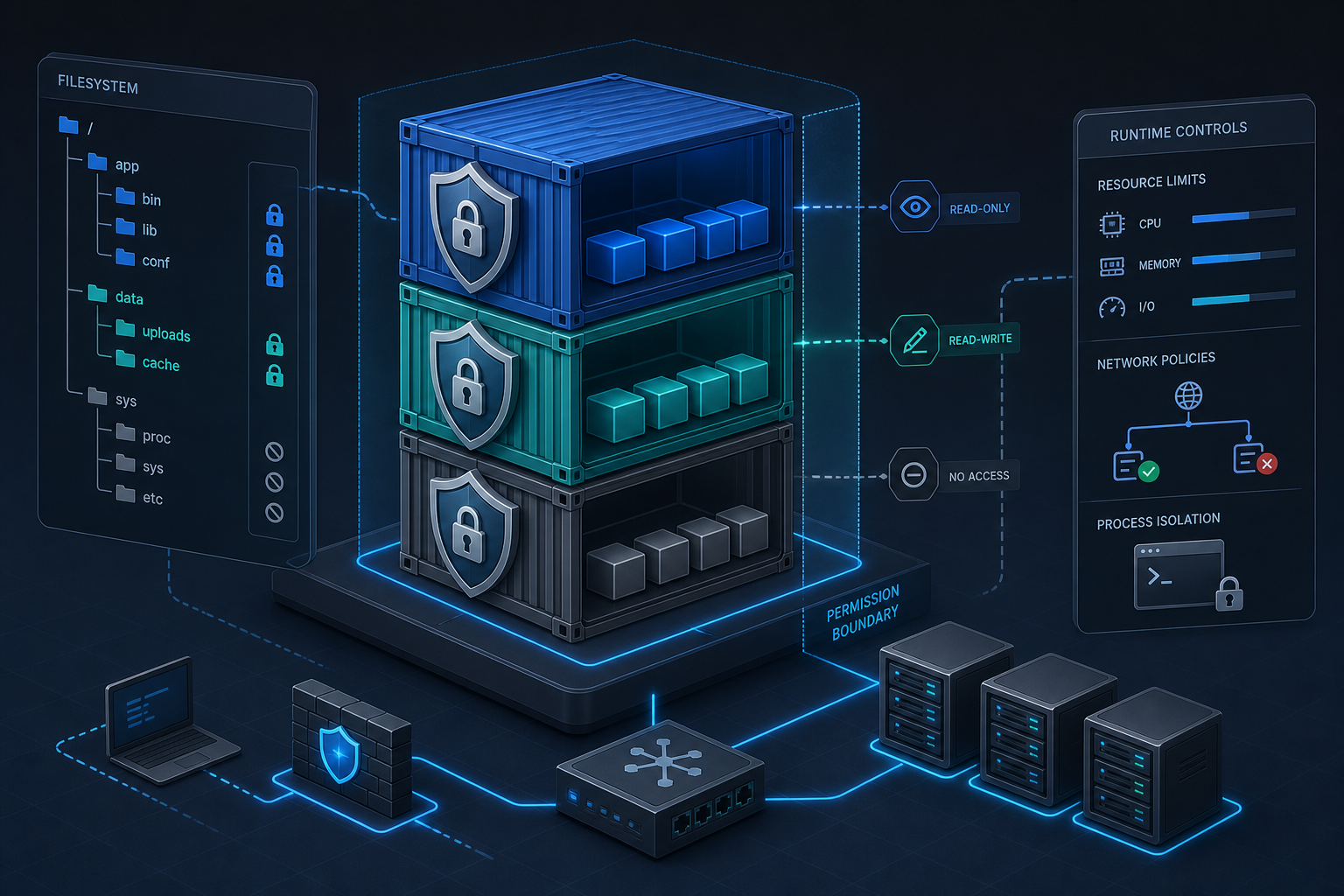
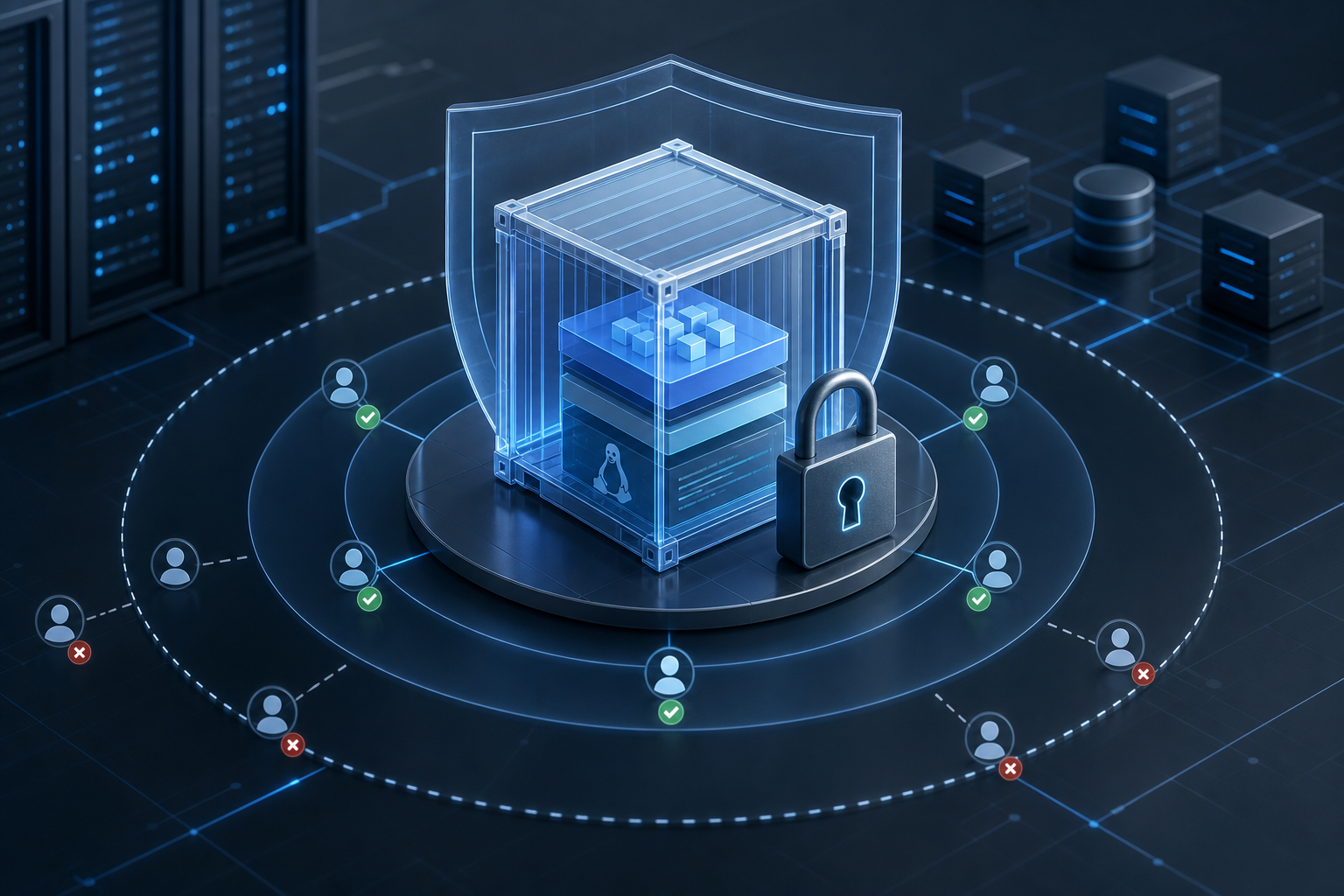
A container that runs with more privilege than it needs is easier to escape, easier to abuse after compromise, and harder to reason about during incident response. The practical problem is not just that root exists inside the container; it is that default container settings often leave unnecessary write access, Linux capabilities, and filesystem paths available even when the application never uses them.
In this tutorial, you will build a least-privilege container runtime profile that:
- runs the application as a non-root user where possible,
- removes Linux capabilities the workload does not need,
- reduces writable surfaces,
- validates the effective runtime permissions, and
- gives you a repeatable check before production use.
If you are also hardening the image itself, combine this workflow with Docker Container Security Best Practices for Image Hardening so you are reducing both image risk and runtime privilege.
What least privilege means in practice
Least privilege in Docker means the container gets only the permissions required for its job, and nothing more. In operational terms, that usually means three things:
- The process does not run as root unless there is a documented reason.
- The container does not receive capabilities it never uses.
- Writable locations are limited to specific paths the application actually needs.
This is not a single switch. It is a set of controls that should be applied together and verified. If one control fails, another often still reduces exposure. For example, if an attacker gets code execution inside the container, non-root execution and reduced capabilities make later abuse more difficult.
Stop here if your application requires privileged host access
Do not force least privilege onto a workload that legitimately needs host-level access, kernel modules, raw sockets, device access, or container-in-container behavior without first documenting the exception. Examples include some observability agents, storage drivers, network appliances, and build systems.
If you cannot explain why the workload needs a privilege, stop and investigate before changing the container. Removing privileges from a process that depends on them can cause silent functional failure, not just startup errors.
Prerequisites and preparation
Before you change runtime permissions, identify what the application actually needs. The most common mistake is guessing. Privilege changes are safest when you start from observed requirements rather than assumptions.
Goal
Confirm the minimum runtime access needed by the container and identify any paths, ports, or OS features that must remain available.
Action
Review the application for:
- the user account it should run as,
- required writable directories,
- required network ports,
- filesystem paths used for logs, cache, and temp files,
- outbound and inbound network expectations,
- any use of raw sockets, mount operations, or device access.
If you already have a running container, inspect its current settings:
docker inspect <container-name> --format '{{json .HostConfig}}' | jq
For a composed service, check the service definition and image metadata. Also verify whether the application refuses to start without root or writes to unexpected paths during startup.
Expected output
You should have a short, explicit list of required permissions and writable paths. At this stage, you should also know whether a non-root runtime is feasible.
Validation
A practical validation check is to compare the application’s documented needs with what it actually writes during a test run. If the app writes only to a few directories, that is the set you should preserve.
Common failure
The most common failure is over-permissioning "just to make it work." That often hides a packaging problem in the application or image. Another common failure is missing a temp or cache directory, which causes the container to fail later under load.
Run the container as a non-root user
Running the main process as a non-root user is the most visible least-privilege control, but it only works if file ownership and runtime paths are prepared correctly.
Goal
Ensure the application process does not run as root inside the container unless there is a documented exception.
Action
You can define the user in the image or at runtime. Runtime override is useful for testing; image-level configuration is usually better for consistent deployment.
Example Dockerfile pattern:
FROM debian:stable-slim

RUN useradd --system --create-home --shell /usr/sbin/nologin appuser \
    && mkdir -p /app /var/lib/app \
    && chown -R appuser:appuser /app /var/lib/app

WORKDIR /app
COPY . /app
USER appuser
CMD ["/app/start.sh"]
Example runtime override:
docker run --user 10001:10001 <image>
If the application needs to write to specific directories, make those directories owned by the runtime user or group before launch.
Expected output
The container starts and the primary process runs under the intended non-root account.
Validation
Inspect the running process inside the container:
docker exec <container-name> id
You should see the expected non-root UID and GID. You can also confirm the process owner:
docker exec <container-name> ps -eo user,pid,comm
Common failure
Typical failures include:
- the entrypoint writes to root-owned directories,
- the image copies files with restrictive ownership,
- the application tries to bind to a privileged port,
- temp files are created in paths the user cannot access.
If the app needs to bind to a privileged port, reconsider the design. In many cases you can run the process on a higher port and map it externally.
Remove unnecessary Linux capabilities
Even when a container runs as non-root, it can still receive capabilities that expand what an attacker can do. Docker adds a default set that is broader than many applications need.
Goal
Reduce the kernel privileges available to the container process.
Action
Start by dropping all capabilities, then add back only the ones you have verified are needed.
docker run --cap-drop=ALL <image>
If the application requires a specific capability, add only that one after confirming the need. For example, some workloads need NET_BIND_SERVICE if they must bind to ports below 1024.
docker run --cap-drop=ALL --cap-add=NET_BIND_SERVICE <image>
If you are uncertain whether a capability is required, test without it first. If the container fails, check the error and only then consider adding the minimum capability needed.
Expected output
The container starts with a narrower capability set, and the application still functions.
Validation
Check the effective capabilities from inside the container when possible, or inspect the runtime configuration from the host:
docker inspect <container-name> --format '{{json .HostConfig.CapDrop}}'
For a deeper check, use a runtime or kernel inspection method appropriate to your environment. The key question is whether the container truly needs the capability you are considering.
Common failure
The most common failure is dropping a capability that the application used implicitly, such as low-port binding or a specialized network operation. Another common issue is assuming that a capability is harmless because the workload starts successfully; privilege reduction should be validated against actual use, not just startup.
If you need broader runtime hardening beyond capabilities, How to Harden Docker Containers with Security Best Practices provides a useful companion workflow for reducing the container attack surface.
Restrict writable locations to what the app actually needs
A container that can write everywhere is easier to tamper with and harder to detect when drift occurs. Restricting write access does not make a container immutable, but it does force changes into a small set of approved paths.
If your workload can tolerate it, pair this with a read-only root filesystem. The separate tutorial on How to Secure Docker Containers with Read-Only Filesystems shows how to validate writable paths correctly.
Goal
Limit write access to explicit directories such as logs, temporary files, caches, or application state.
Action
Mount or create only the writable paths the app needs. A common pattern is to use named volumes or bind mounts for stateful paths and keep everything else read-only at the image layer.
Example:
docker run \
  --read-only \
  --tmpfs /tmp \
  --tmpfs /run \
  -v app-data:/var/lib/app \
  <image>
If the application needs a log directory, mount it explicitly rather than letting it write across the filesystem. Make sure ownership and permissions match the runtime user.
Expected output
The container can write only to approved locations, and unexpected writes fail early.
Validation
Inside the container, try creating a file in a non-approved location and confirm the write fails:
docker exec <container-name> sh -c 'touch /root/testfile'
Then verify the real writable paths still function:
docker exec <container-name> sh -c 'touch /var/lib/app/testfile'
Common failure
Common issues include missing tmpfs mounts, log paths that were overlooked, and permission mismatches between the host volume and the container user. Another frequent problem is assuming the application only needs one writable directory when it actually writes to several during startup.
Verify the runtime configuration before production
Least privilege is only useful if you can prove the container is actually running with the intended restrictions. Verification should be part of the rollout, not an afterthought.
Goal
Confirm the container is running with non-root execution, reduced capabilities, and approved writable paths.
Action
Inspect the runtime config from the host:
docker inspect <container-name> --format '{{json .Config.User}}'
docker inspect <container-name> --format '{{json .HostConfig.CapDrop}}'
docker inspect <container-name> --format '{{json .Mounts}}' | jq
Then test behavior inside the running container:
docker exec <container-name> id
docker exec <container-name> sh -c 'mkdir -p /tmp/test && echo ok >/tmp/test/check'
For a stricter validation, attempt a write outside allowed paths and confirm it fails. Also confirm the application still handles its normal read and write paths, such as cache refresh, log creation, or state updates.
Expected output
Your verification should show:
- a non-root user or explicit documented exception,
- dropped capabilities with only verified additions,
- writable paths limited to approved locations,
- no unexpected permission errors in normal use.
Validation
Treat verification as a pass only when both conditions are true:
- the runtime configuration matches your intended security posture,
- the application still functions with representative workload behavior.
Common failure
A frequent failure is verifying only startup success. Startup is not enough. Some permission issues appear only when the application rotates logs, handles uploads, writes caches, or processes error conditions.
Operational follow-up after deployment
Least privilege is not a one-time change. Images change, dependencies change, and application behavior changes. A secure setup can drift over time if nobody checks it.
Goal
Keep the container restricted as the application evolves.
Action
Add the following checks to your deployment process:
- confirm the container still runs as the intended user after image updates,
- review capability requirements after feature changes,
- re-check writable paths when new logs, caches, or state files appear,
- monitor for permission-denied errors that indicate the workload is trying to expand its footprint.
If you use CI/CD, make least-privilege checks part of the deployment gate. A simple policy can fail the build if a container is configured to run as root without an approved exception or if it requests capabilities beyond the allowlist.
You should also re-evaluate any exception periodically. A privilege that was required six months ago may no longer be needed after a software update or a configuration change.
Common failure
The most common operational failure is privilege creep. Teams add a capability or writable mount to solve a temporary issue, and it remains in place indefinitely. Over time, the container becomes easier to compromise than it needs to be.
A practical least-privilege checklist
Use this as a final review before production rollout:
- The application runs as a non-root user, or there is a documented exception.
- All Linux capabilities are dropped unless explicitly required.
- Writable paths are limited to named directories or volumes.
- Temporary paths are mapped deliberately, not left to defaults.
- The container has been tested with representative workload behavior.
- Failed writes outside approved paths were validated.
- Any exception has an owner, a reason, and a review date.
If you cannot answer one of these items confidently, the container is not ready for production use.
Final takeaway
Securing Docker containers with least privilege access is a practical workflow, not a slogan. Start by identifying what the application actually needs, run it as a non-root user when possible, remove unnecessary capabilities, restrict writable paths, and verify the result under realistic conditions. When the container’s runtime permissions are deliberate and auditable, you reduce the impact of compromise and make future changes easier to validate.
Use this guidance together with VMware VM performance tuning and hardening EC2 to connect the workflow with related operational context already available on the site.