Why read-only filesystems matter
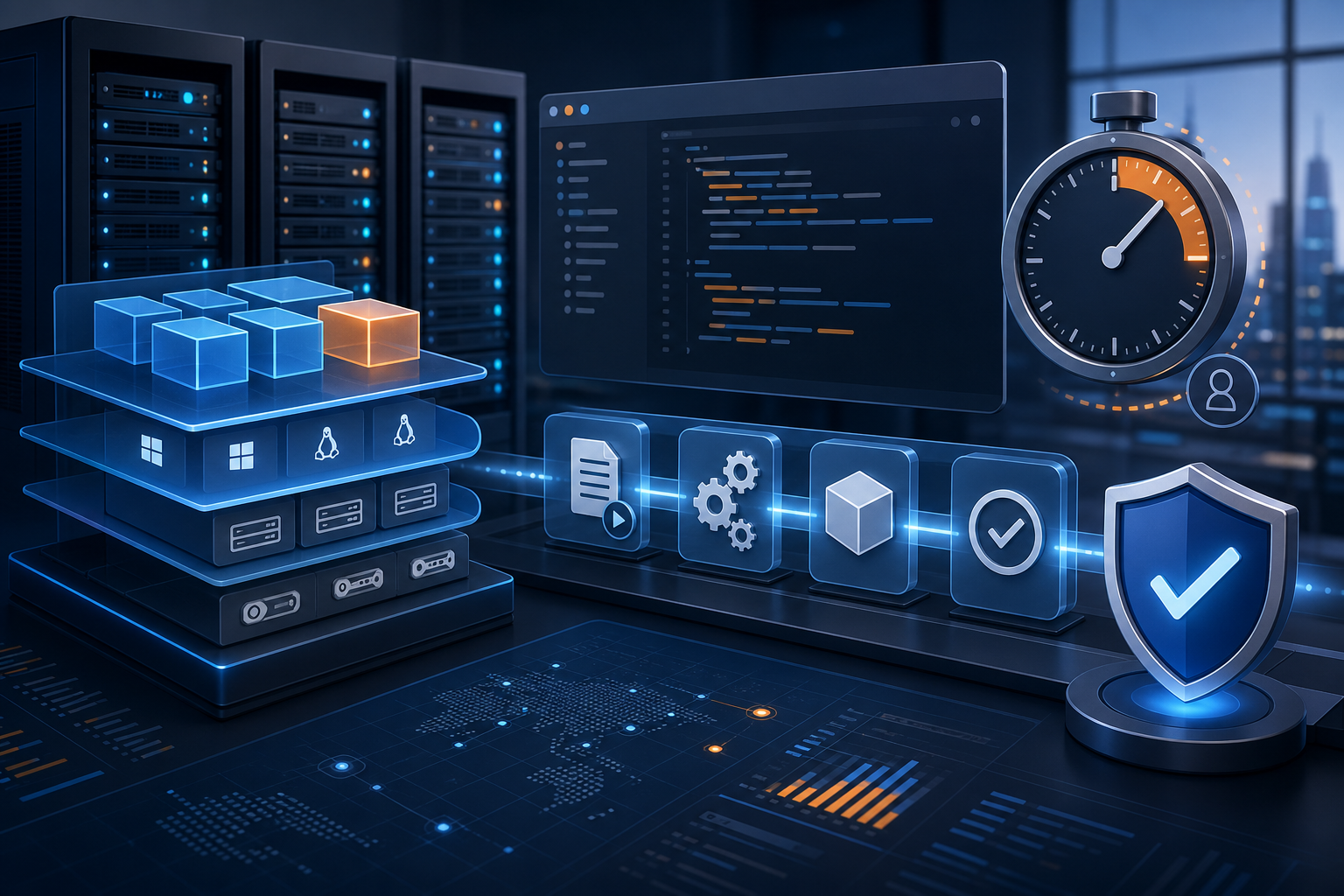
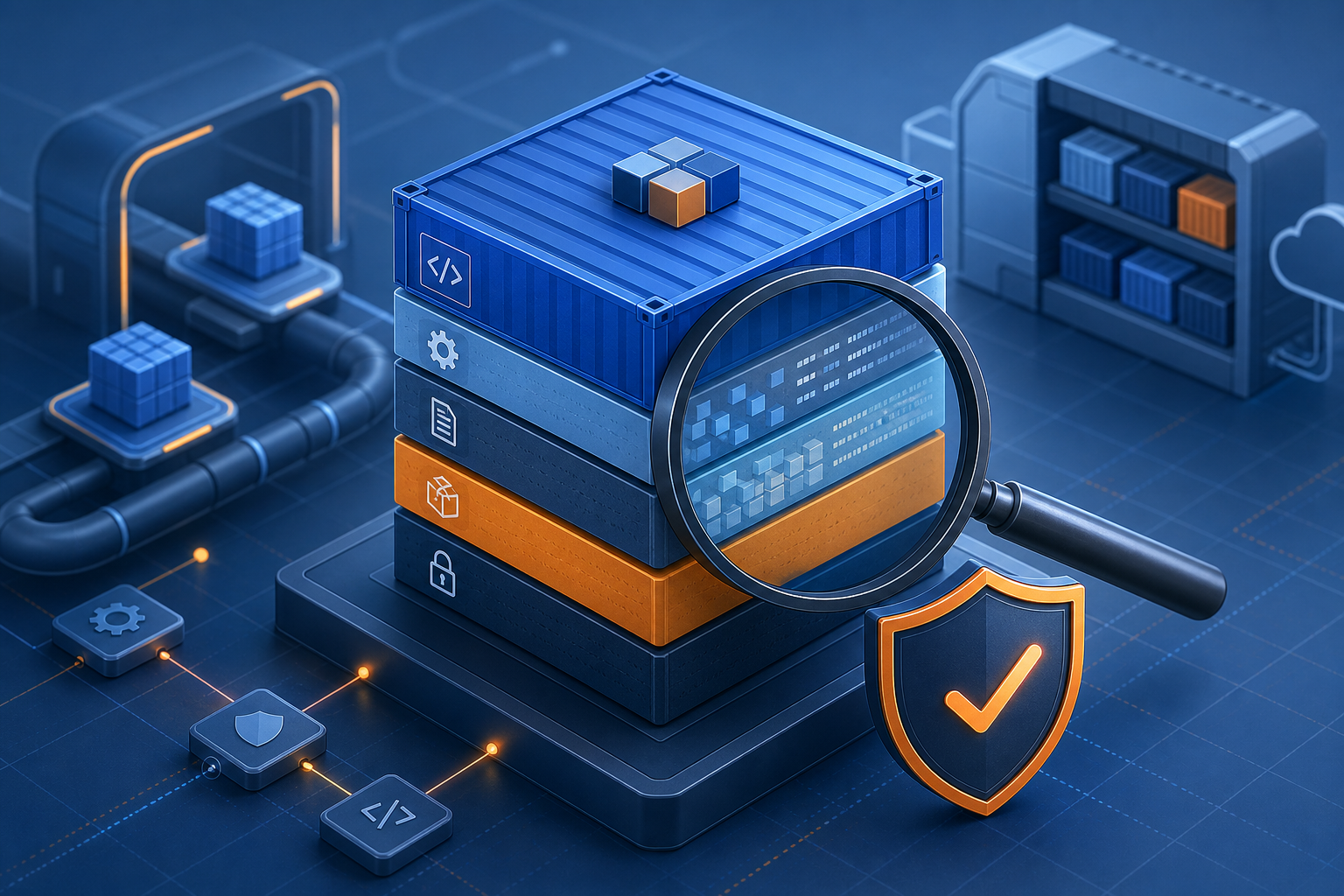
A writable container filesystem is convenient, but it also gives unexpected code paths somewhere to land. If an application or dependency is compromised, the attacker often looks for places to drop binaries, modify startup files, or persist changes inside the container. A read-only root filesystem removes that option from the default path and forces the workload to use only the writable locations you explicitly allow.
In practical terms, this tutorial shows how to run a Docker container with a read-only root filesystem, how to identify the writable paths your application still needs, how to validate that the container is actually using them, and what to verify before you put the configuration into production.
This is not a universal hardening switch. Some workloads work cleanly with a read-only root; others need write access for caches, runtime sockets, PID files, temp directories, or application state. The goal is to make those dependencies explicit and controlled.
What you need before you start
Goal
Confirm that the image and workload are suitable for a read-only root filesystem.
Action
Before changing runtime settings, check the following:
- The application can run without writing to its installation directories.
- Any temporary files can be redirected to a writable mount such as
/tmpor an application-specific path. - Logs can be sent to standard output/error or to a designated writable volume.
- The process does not need to update binaries, install packages, or self-modify at runtime.
- You know which directories must remain writable, if any.
If you are hardening an existing service, review the current container behavior first. For example, an application that stores profiles, uploads, session state, or cache files may need a dedicated writable volume even when the root filesystem is read-only. If you are working from an operations playbook such as Citrix Virtual Apps FAQ: Troubleshooting Session Launch Failures, the same principle applies: identify the failure domain before changing the runtime surface.
Expected output
A short list of required writable paths and a clear decision on whether the workload can tolerate a read-only root filesystem.
Validation
You should be able to answer these questions before proceeding:
- What path, if any, does the application require for writes?
- Can the service start without creating files in its image layers?
- Can logs and temporary files be redirected safely?
Common failure
The most common mistake is enabling read-only mode before understanding the application’s write behavior. That usually leads to startup failures, missing temp files, or broken health checks.
Stop-here-if warning
Stop here if the container must write into its own installation tree, patch itself at startup, or depend on an unexamined runtime agent that creates files in arbitrary locations. Fix the application contract first.
Prepare the container layout
Goal
Separate immutable application content from the small set of paths that must remain writable.
Action
Design the container so that the root filesystem can remain immutable while required write locations are mounted explicitly. Common writable locations include:
/tmpfor transient files- application cache directories
- log directories, if logs are not written to stdout/stderr
- socket or PID file locations
- data directories for stateful components
A clean pattern is to keep the image as read-only application content and mount only the writable paths that are truly necessary. For example, if the app expects temporary files under /tmp, provide a writable tmpfs or volume there rather than leaving the entire container writable.
If your service needs to write to /var/lib/app, mount that path as a named volume or bind mount and keep everything else read-only. This reduces the writable footprint and makes operational review simpler.
Expected output
A container design that distinguishes immutable application files from explicit writable mounts.
Validation
Inspect the image layout and confirm that:
- The executable, libraries, and configuration files are part of the image.
- Only the required write paths are mounted as writable.
- The application can find those paths using its configured environment variables or flags.
Common failure
A frequent failure is placing a writable volume at the wrong path, which makes the service appear to start but fail later when it tries to write somewhere else. Another common issue is forgetting to mount /tmp, causing hard-to-diagnose runtime errors.
Configure Docker to use a read-only root filesystem
Goal
Run the container so the root filesystem cannot be modified at runtime.
Action
Use Docker’s read-only root filesystem setting when starting the container:
docker run --read-only \
  --tmpfs /tmp \
  --tmpfs /run \
  -v app-data:/var/lib/app \
  your-image:tag
In this example:
--read-onlymakes the container root filesystem immutable.--tmpfs /tmpgives the process a writable temporary area.--tmpfs /runprovides another common runtime path for sockets or PID files.-v app-data:/var/lib/appmounts a writable data volume only where needed.
If your application needs additional writable paths, add them explicitly. Keep the list short and justify each one.
For Compose-based deployments, the same model applies: set the service filesystem to read-only and declare writable mounts only where required.
Expected output
A running container with a read-only root and a minimal set of writable exceptions.
Validation
Check that the container starts, then inspect its mount behavior and runtime state. Useful validation steps include:
docker inspect <container_name> --format '{{.HostConfig.ReadonlyRootfs}}'
docker exec <container_name> sh -c 'touch /etc/test 2>/dev/null; echo $?'
docker exec <container_name> sh -c 'touch /tmp/test && echo writable'
Expected results:
- The inspect command should report
truefor the read-only root filesystem. - Writing to a root-owned location such as
/etcshould fail. - Writing to the intended temp path should succeed.
Common failure
The most common failure is assuming --read-only alone is enough. Many applications still need writable temp, runtime, or data paths, and they fail immediately if those paths are missing.
Redirect application writes to approved locations
Goal
Make the workload write only to the directories you intended.
Action
Review the application configuration and move writes away from the root filesystem. Typical adjustments include:
- Set cache directories to a mounted volume or tmpfs.
- Configure logs to go to stdout/stderr or a writable log volume.
- Move PID or socket files to
/runor another writable mount. - Set temporary file directories through environment variables if the application supports them.
For example, many services respect TMPDIR for temporary file placement. If the application uses a different variable or config key, use the vendor-documented setting rather than relying on defaults.
If you are automating rollout changes in a controlled environment, the same discipline used in Citrix Virtual Apps Script for Session Timeout Automation applies here too: validate inputs, keep the change narrowly scoped, and preserve rollback options.
Expected output
The application writes only to approved paths and no longer depends on writable image layers.
Validation
Start the container and generate the app behavior that normally creates files. Then verify:
- No new files appear in read-only image paths.
- Required files appear only in the mounted writable paths.
- The application still handles normal startup, request handling, and shutdown cleanly.
A practical test is to exercise the code path that creates logs, cache entries, upload files, or runtime sockets. If those operations work without touching the immutable filesystem, the configuration is close to production-ready.
Common failure
A frequent failure is redirecting one write path but missing another one. For example, the app may use /tmp for one operation and a separate cache path for another. If you only mount one of them, intermittent failures may appear under load.
Validate the container behaves as read-only in practice
Goal
Prove the container is not silently writing to the root filesystem.
Action
Do not stop at startup success. Validate by checking both normal operation and failure behavior.
A useful test sequence is:
- Start the container with the read-only flag and required writable mounts.
- Run the application’s normal startup path.
- Exercise a request or job that creates transient files.
- Check that expected writes land only in the approved mounts.
- Try a write into a protected path and confirm it fails.
Example:
docker exec <container_name> sh -c '
  set -e
  mkdir -p /tmp/ro-test
  touch /tmp/ro-test/allowed
  ! touch /etc/should-fail
'
This is not a substitute for application-level testing, but it is a strong guardrail that catches missing mounts and hidden write assumptions.
Expected output
Evidence that the root filesystem is immutable and that only designated paths remain writable.
Validation
You should see both of the following:
- Writes to protected paths fail with permission or read-only filesystem errors.
- Writes to the approved paths succeed.
If the workload exposes health checks, verify that they still pass after the filesystem is locked down. This is especially important for services that create temp files or runtime sockets during readiness checks.
Common failure
One common failure is testing only a shell command such as touch /etc/test and ignoring the actual application behavior. The real risk is often in startup hooks, background jobs, or libraries that write unexpectedly under load.
Handle common failure modes safely
Goal
Recognize and fix the most likely issues without weakening the hardening model.
Action
When a container fails after enabling read-only mode, check these areas first:
- Temp file errors: Mount
/tmpor redirect temporary directories. - Log write errors: Send logs to stdout/stderr or a writable log path.
- PID or socket errors: Mount
/runor adjust the process manager configuration. - Cache or state errors: Provide a dedicated writable volume for the exact path in use.
- Permission errors: Confirm the container user can write to the mounted path.
Avoid the temptation to make the whole root filesystem writable again. If the workload truly needs a new write path, mount only that path and keep the root locked down.
Expected output
A minimal exception list that resolves startup or runtime issues without expanding the writable surface unnecessarily.
Validation
After each change, repeat the startup and write-path checks. Confirm that the fix resolved the actual error and did not introduce new writable locations.
Common failure
The most dangerous failure is treating read-only mode as a toggle to disable when something breaks. That hides the root cause and removes the security benefit. The better pattern is to identify the exact write dependency and mount that path explicitly.
Operational follow-up before production use
Goal
Make the configuration maintainable, observable, and safe to roll out.
Action
Before production deployment, confirm the following operational points:
- The image is built to avoid runtime writes into the root filesystem.
- Required writable paths are documented alongside the service definition.
- Health checks do not rely on unexpected write access.
- Logging and temporary file handling are consistent across environments.
- Rollback is defined in case the application has an unrecognized write dependency.
If you manage containers through infrastructure as code, encode the read-only root filesystem and writable mounts in the deployment definition so the setting does not drift over time. That keeps security controls reproducible and reviewable.
Expected output
A container configuration that can be deployed consistently with the same read-only behavior in development, staging, and production.
Validation
Perform a final smoke test in an environment close to production and verify:
- The container starts with the read-only flag enabled.
- All required mounts are present.
- The application’s normal workflow still functions.
- No unexpected writable paths are introduced during deployment.
Common failure
The most common production issue is environment drift: the image works in one environment because a hidden volume or permissive setting exists there, but fails elsewhere when the assumption is removed.
Practical decision rule
If the workload can run with a small, explicit set of writable mounts, a read-only root filesystem is a good fit. If the application needs broad write access to keep functioning, the better fix is usually to redesign the write behavior rather than keep the container broadly writable.
A secure container is not one that never writes anything. It is one that writes only where you expect, for reasons you can explain, and with validation you can repeat. That is the operational value of securing Docker containers with read-only filesystems: less mutable surface, clearer dependencies, and fewer places for unexpected changes to hide.